
The ZeroKey Edge Compute Device (ECD) provides access to the Spatial Intelligence Platform (SIP), which allows the user to customize the dashboard and integrate through our API.
Hardware Overview
The Protectli ECD features an Intel processor, includes 32GB DDR5 RAM and Wi-Fi/ethernet connectivity. The ECD runs Windows 11 64-bit (Pro and home), Windows 10 64-bit (Pro and home), Windows 10 IoT Linux (Ubuntu).
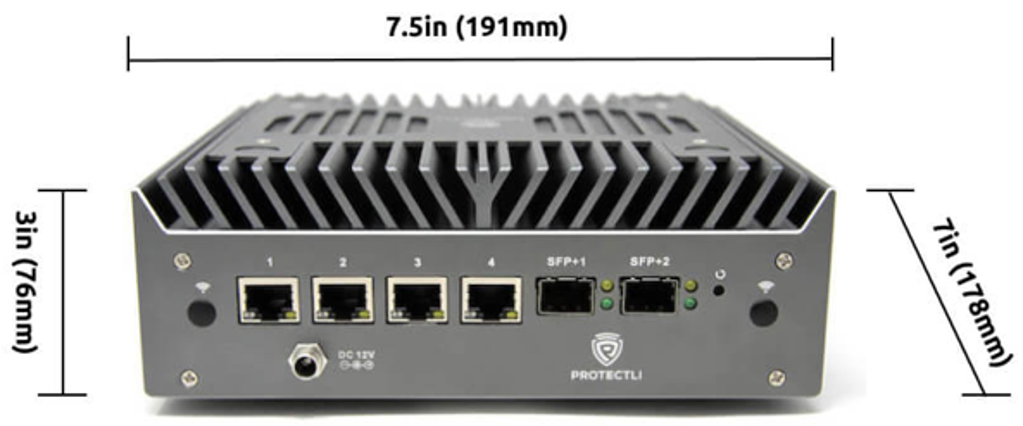
Hardware Overview - Dimensions
Hardware Overview - Back
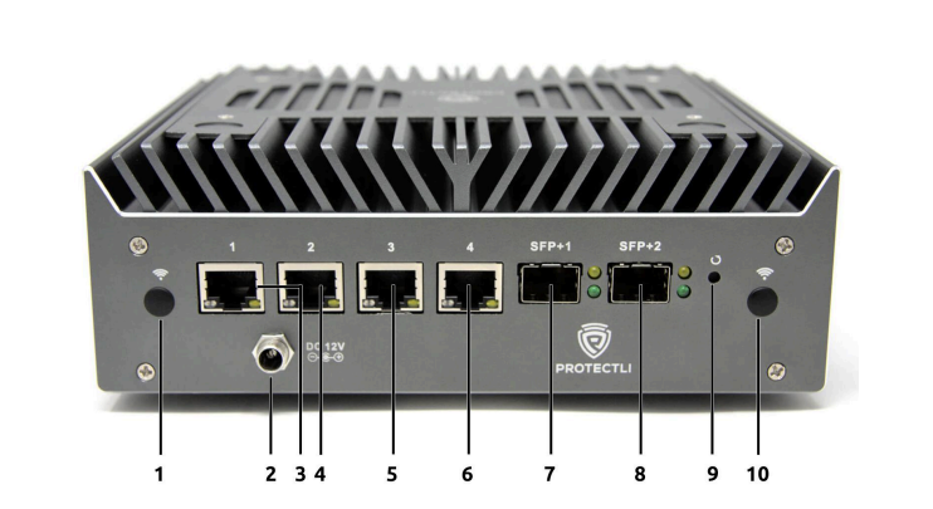
|
Component |
Description |
|
1, 10 |
Antenna Ports |
|
2 |
Power Supply Input |
|
3, 4, 5, 6 |
Network Ports Note: Only ports 1 and 2 are supported Note: Port 1 is used for the ZeroKey Anchor Network, Port 2 is used for the company network connection |
|
7, 8 |
SFP Ports – Note: The SFP ports are not supported |
|
9 |
Reset Button |
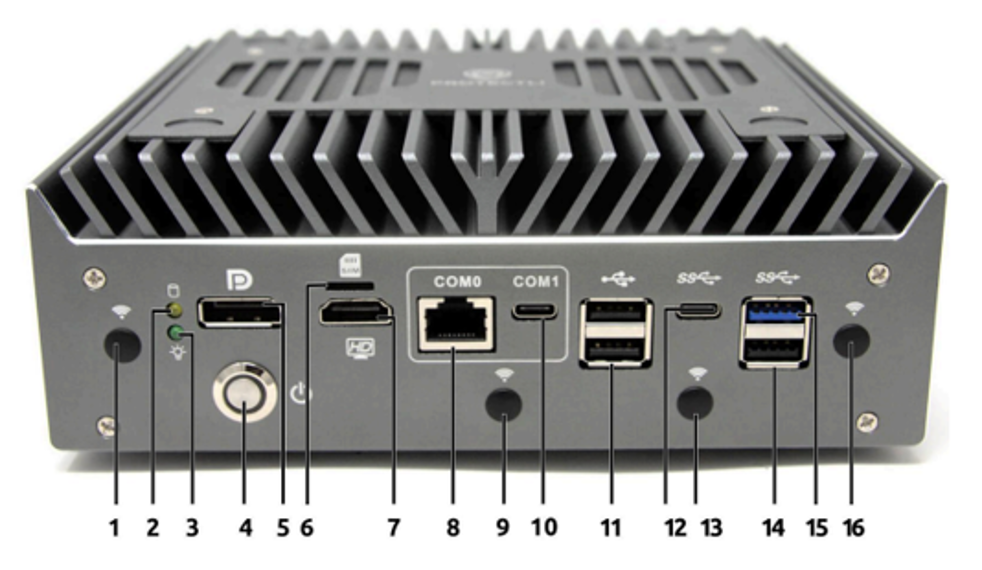
Hardware Overview - Front
|
Component |
Description |
|
1, 9, 13, 16 |
Antenna Ports |
|
2 |
HDD Activity Light |
|
3 |
Power Indicator |
|
4 |
Power Button – Note: Press briefly to power on, hold to power off |
|
5 |
Display Port Connector – Note: Not supported |
|
6 |
SIM Slot – Note: Not currently supported |
|
7 |
HDMI Connector |
|
8, 10 |
Serial Port Console – Note: Not supported |
|
11, 14 |
USB 2.0 Type-A Connectors |
|
12 |
USB 3.2 Gen 2 Type-C Connector |
|
15 |
USB 3.2 Gen2 Type-A Connector |
ECD Connection
Check out our help articles about establishing a connection to the ECD wirelessly or via a direction connection.
Ethernet Connections
Ethernet Port 1: Set to DHCP mode for a dynamic IP assignment when connected to the company network.
Ethernet Port 2: Configure as the DHCP server with a static IP to manage local devices, allowing connected devices (e.g., PoE Anchors) to automatically receive IP addresses. Ensure the assigned IP is not the same as the company network.
Ethernet Port 3 and 4: The remaining ethernet ports are not currently used and should not be connected to your network or to the ZeroKey devices.
Gateway USB Connections
Connect your ZeroKey Gateway to one of the ECD’s USB type-A connectors using the cable supplied with your system. Positioning will start automatically once the Gateway is connected.